

Below is my personal review of Wikibuy from Capital One. I am a big fan of saving money when I can so I am one who will try anything if it will help me get the things I want at a cheaper price.
While Wikibuy is being provided by Capital One, you do not actually need a Capital One card to use this online tool. I am a Capital One card holder – actually I have several – but it is great that this money saving tool is available to everyone and the availability of it as a browser add-on for Chrome and Firefox make it a breeze to get started.
So let’s talk a little bit about this fantastic tools for saving money online!
Quick Links
What Is Wikibuy?
Wikibuy from Capital One is an online comparison shopping add-on for your website browser that will help find better prices and save possibly save big on products you are shopping for. This review will show how this shopping tool works and if it can really save you money.
It is available as a browser add on for Chrome and Firefox and an iPhone App, we have provided the links below so you can get started shopping online and saving money today!
iPhone App
Chrome Extension
Firefox Extension
Ways You Can Use Wikibuy
Wikibuy offers several different ways you can save money when shopping and we wanted to outline each below.
Price Comparisons: You can use their browser icon to search for products, use the Wikibuy website shopping tools or see the deals on Amazon products. Each of these wasy will show you a list of options for a product to help you find the best deal.
Price Tracking: You can track products with Wikibuy and it will keep an eye on the pricing and send you notifications if you want so you can buy the product when the price is low.
Wikibuy Credits: You can earn credits every time you shop and click the Wikibuys credit notification when you shop. The more credits you get – the more gift cards you can buy through their site.
Augmented Reality App: One of their coolest features is on the iPhone app – it is an augmented reality function that will help you see how something will look in your home. This is only available on the app!
An Example Of Wikibuy With Amazon
If you are shopping on Amazon for example for a Canon EOS camera – you see it on Amazon for $2,899 – Wikibuy will search in the background and show you where you can find it cheaper.
It also takes offers costs with shipping and tax as well giving you a more realistic price comparison.
In the screenshot below you can see the Wikibuy box right on the product page – this is because I set it up to show this way. By default you would not see the comparison until you get to the checkout page. I have noted how to change this setting below.
But right away you can see I potentially have a savings of almost $450 by buying it somewhere else!

Once I click on the Continue To Wikibuy link above I can see where the better deal is happening! In the screenshot below you can see a list of cheaper prices and websites to help you decide where to get the best deal.
You can see more offers as well by clicking on that Show All Offers area.
Simply click on the website you think has the best deal and you are ready to buy! In this case I clicked through to Abt.com and the deal in fact matched what was listed below and they also are offering a 2% Wikibuy credit.

Wikibuy Price History
Another cool feature is their price history graph and insights which can help you see the fluctuation for what you want to buy. Very helpful if you are looking to keep an eye on something special you want to buy!

Searching Wikibuy With The Browser Icon
Another way to use the Wikibuy extension is to do a search right from their browser icon. Simply click the icon and a search box will appear if you are not on a shopping page. In the image below you can see the icon and the dropdown that appears with the search box.
I entered Canon EOS R and as I type the list will populate with options to help you search.

Once you click the item you want to get pricing for – you will be taken to a full list of items and options for refining your search based on price, brands and more. Clicking on an item will take you to a detailed page with the price comparisons, history and more.
That is all there is to it!

Signing Up For Wikibuy is Easy
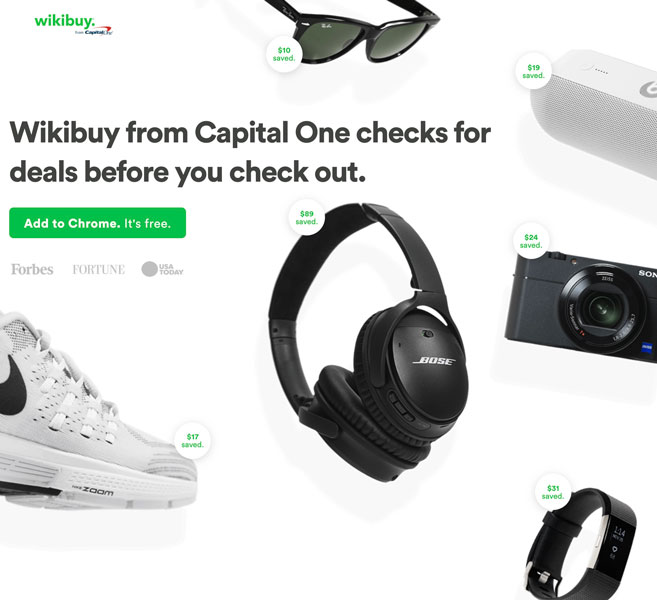
First you need to head on over to their home page to get started. Click here to get to the right place! Then you will see a screen like the one below – if you are on Firefox you will see that on the green button instead of Chrome!
Just click the green button to get to the next page.
Creating A Wikibuy Account
Once you install the extension you should be redirecting to their onboarding page. This is where you go and accept the terms and privacy rules.

Once you complete the above you will be taken to a few optional screens like the one below – you can of course do them, but you can also skip these steps. A few of the screens did include some tips on how to use the extension so you may want to peak at those!
Once you are done you will head to the Wikibuy home page where you can see any special offer local to you and you can access your profile.
Wikibuy Account Details
Once you are all registered and ready to roll – you will be taken to a home page that looks like the one below. You can do the following from this page:
- In the stores and products drop downs you can filter to find shopping promotions based on broad categories or more specific products.
- If you know a specific product you are going to want to purchase soon (say a Watch for example) – you can use the Watchlist tab to add it and track the price until you are ready to buy.
- Redeem is where you can trade in Wikibuy credits for gift cards.
- On the right you will see your name with a dropdown icon which is where you can manage your settings – we recommend jumping to that area before you get started so you have settings that make sense for you.
As an example in the NOTIFICATIONS area – we chose to set the question “When would you like to see credit notifications” to product pages. This will allow me to see everything offered right on the product – not just in the shopping cart or in checkout.
Earning Wikibuy Credits
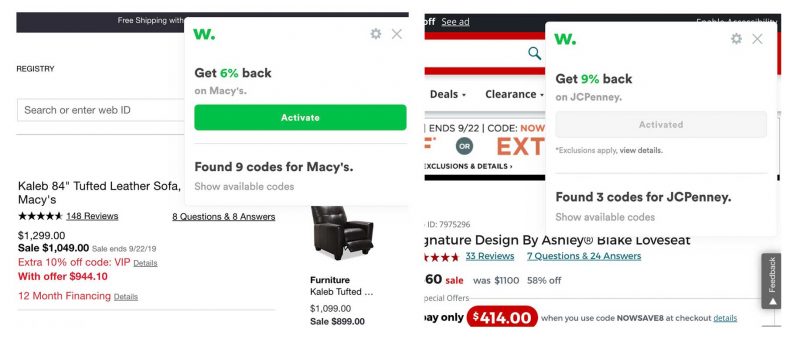
Wikibuy credit are offers that vary from store to store. As you can see below we can get 6% back at Macy’s and 9% back at JCPenney. Each also has coupon codes available as well which you can click to see.
If you prefer to buy things locally and not online, you can also connect a credit card to your Wikibuy account and when you shop at an eligible retailer where you have activated credits they will be applied within 7 days when you use that card to make a purchase.
Wikibuy credits are only able to redeemed for gift cards on the Wikibuy website.
What We Love
- Easy setup and account creation
- Pretty accurate and can help save a decent amount of money
- Earning of credits for gift card purchases
- Finds a lot of coupons
What We Don’t
- We did find a few pricing inaccuracies – mostly on Ebay
- Sometimes when I tested I found cheaper prices when searching manually
What Stores Are Part of Wikibuy?
Not every store is part of the program – so you may want to check and see if some of your favorite stores are there. They primarily work with larger merchants, so you should not expect to find mom and pop shops there.
View the list of all participating stores.
Is Wikibuy A Scam
Absolutely not.
Wikibuy.com is a legitimate site that will help you save money most of the time whether with lower prices or coupons. You can find details on TrustScam about it here.
Is Wikibuy Safe?
Any time you add an extension or app we always recommend you take the time to read their privacy policy in full to ensure you are not providing them data you do not want.
Because Wikibuy does integrate with retailers it will track your shopping habits and purchases. This is the only way it can help you find the best coupons and offers.
Overall we do find Wikibuy safe and could not find any major complaints or issues with safety.
Be Sure To Double Check!
We do want to make sure that you double check pricing when using Wikibuy, especially with Ebay products. Sometimes they do not calculate shipping and we even saw a few wrong prices during our testing that would have affect the final cost savings.
You also want to be sure that wherever you buy from offers warranties on expensive products as well!
Wikibuy Reviews
Although I am committed to offering 100% honest reviews and providing you with the most informative information so you can make the best decision – I want to be sure to offer other Wikibuy reviews for you.
My goal is to make your life easier by compiling all the data you need to save you the work when making purchasing decisions. Below are some reliable and more recent sources showing unbiased reviews about Wikibuy so you can decide if it is right for you.
Wikibuy Reviews on Reviewopedia
Wikibuy on Trustpilot
Final Thoughts
For now I am keeping Wikibuy activated and will continue to use it.
But for those that really hate the idea of giving up your personal information – you can pretty much do the same thing that Wikibuy does manually by going to Google Shopping or just searching the internet.
The plus to using Wikibuy is the time saved in the internet search – which for me is priceless!
Overall I do recommend Wikibuy as a safe option for those that love to shop and save money!
If you are using it we would love to hear your thoughts!

Leave a Reply